
Setting up the workspace
To start on Java development, the easiest way could be to start with Java SE. For that first we need to set up the workspace so we can start working with it. What we need is…
1. Java Development Kit (JDK)
For the workspace we need some development tools one of them being JDK. The JDK includes the Java compiler and Java APIs. This is also known as Java Runtime Enviroment.
There is multiple versions of JDK:
- Java SE: Java Standard Edition Platform
- Java EE: Java Enterprise Edition Platform
- Java ME: Java Micro Edition Platform
For new learners Java SE is usually the best one and easiest of these.
Download compatible version of Java SE for your system from Sun’s / Oracle’s site or through this link: https://www.oracle.com/java/technologies/javase-downloads.html
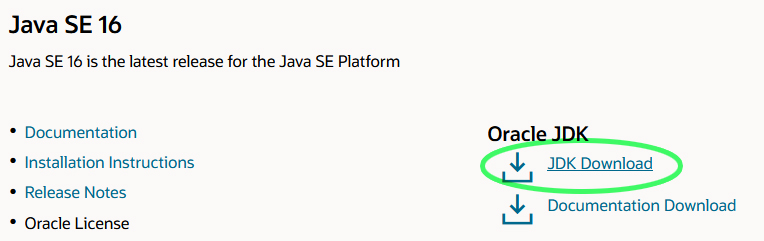
Install downloaded JDK.
2. Code- or texteditor
There are many usable code and text editors which can be used to write Java. Some of these are ConText, Vim, Emacs, Notepad and Eclipse.
For this guide we will install Eclipse. So…
Download compatible version of Eclipse for your system from Eclipse’s site or through this link:
http://www.eclipse.org/downloads/packages/
You can select package of “Eclipse IDE for Java Developers”. It’s good program to use for Java development.

Unzip the Downloaded Eclipse on the place of your choice. After this you can run Eclipse from this unzipped folder though the Eclipse.exe -icon.
3. Set some base adjustmets for Eclipse
You can make some workspace-specific adjustments for Eclipse. These are some recommended settings that you could check:
- Tab characters off:
- Windows / Preferences / Java / Code Style / Formatter /
- Press Edit. If you don’t already have your own layout file, enter a name and save.
- Indentation, tab policy: spaces only
- Comments and check box: Enable Javadoc comment formatting
If you want that tests work you should take the formatting of the comments off
- Errors on missing comments:
- Window / Preferences / Java / Compiler / Javadoc
- Check all items and set levels to Error and visibility to protected
- Errors on if the @Override note is missing
- Window / Preferences / Java / Compiler / Erros / Warnings
- Open Annotations-tab and set level to error for missing ‘@Override annotation’ -item.
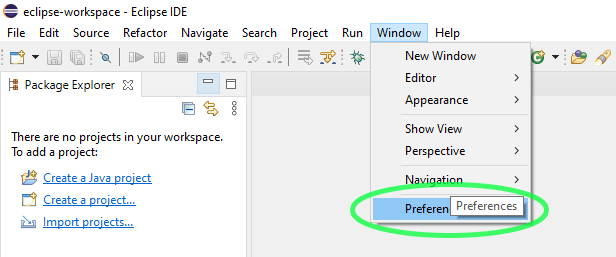
- Proofreading off
- Windows / Preferences / General / Editors / Text Editors / Spelling
- write a spell in the search, Spelling and remove the proofreading (check)
- Automatically add a date to comments
- Windows / Preferences
- enter templa to a search and select Java / Code Style / Code Templates
- Open Comments and select Types
- Edit and change the format (you can get the variables through the Insert variable -button..)
/ **
*
* @author $ {user}
* @version $ {date}
* $ {tags}
* /
You can also backup your Eclipse settings / layout file:
- Windows / Preferences / Export

Leave a Comment